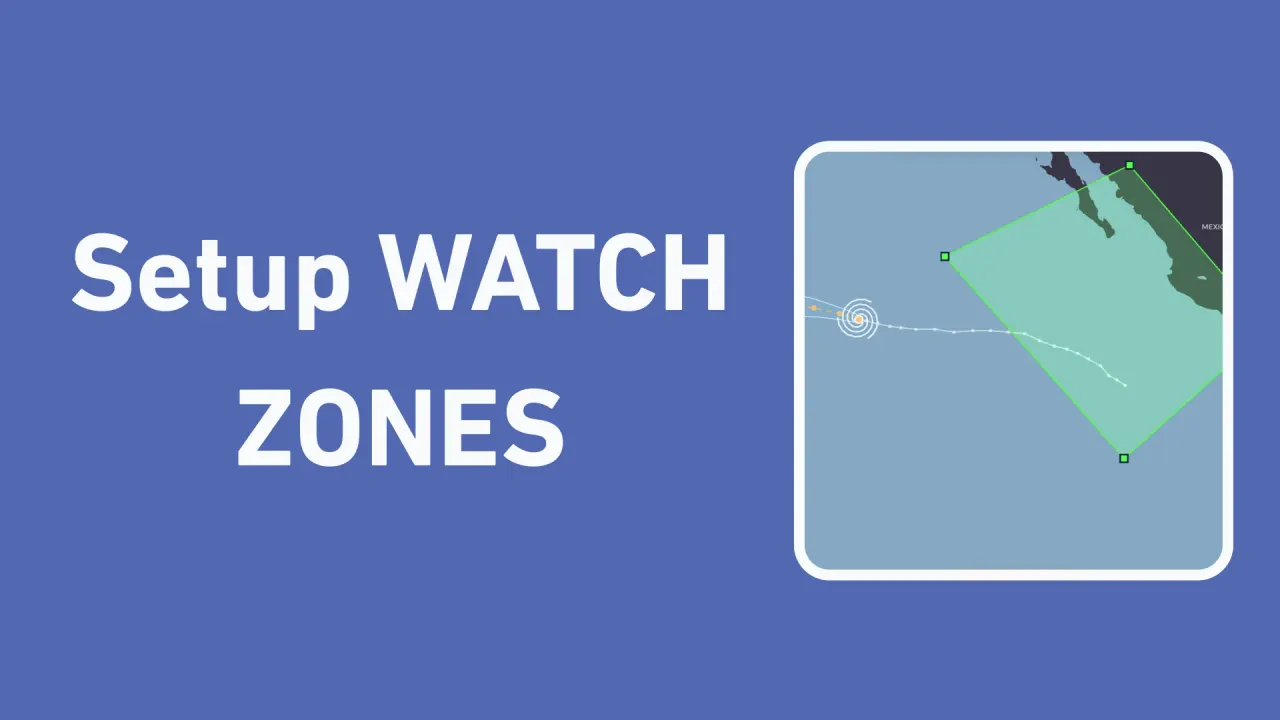
How to Setup Watch Zones on WAKETRACE
Using the WAKETRACE map, you can setup Watch Zones that notify you when something takes place in an area you want to monitor.
By WAKETRACE Team · · WAKETRACE Guides
This guide shows you step-by-step, how to setup a Watch Zone on WAKETRACE.
Step 1: Open the Watch Zone feature
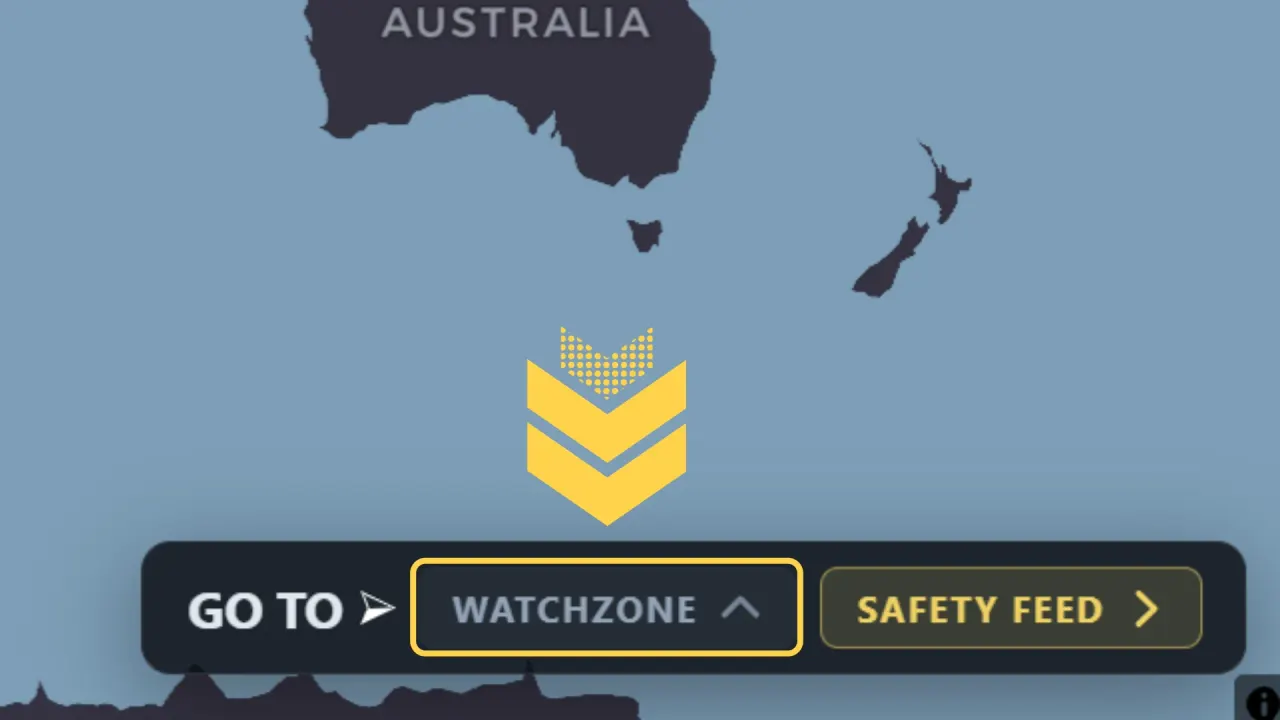
To get started, press the WATCHZONE button to open the feature, then press SETUP WATCHZONE.
Step 2: Draw your Watch Zone
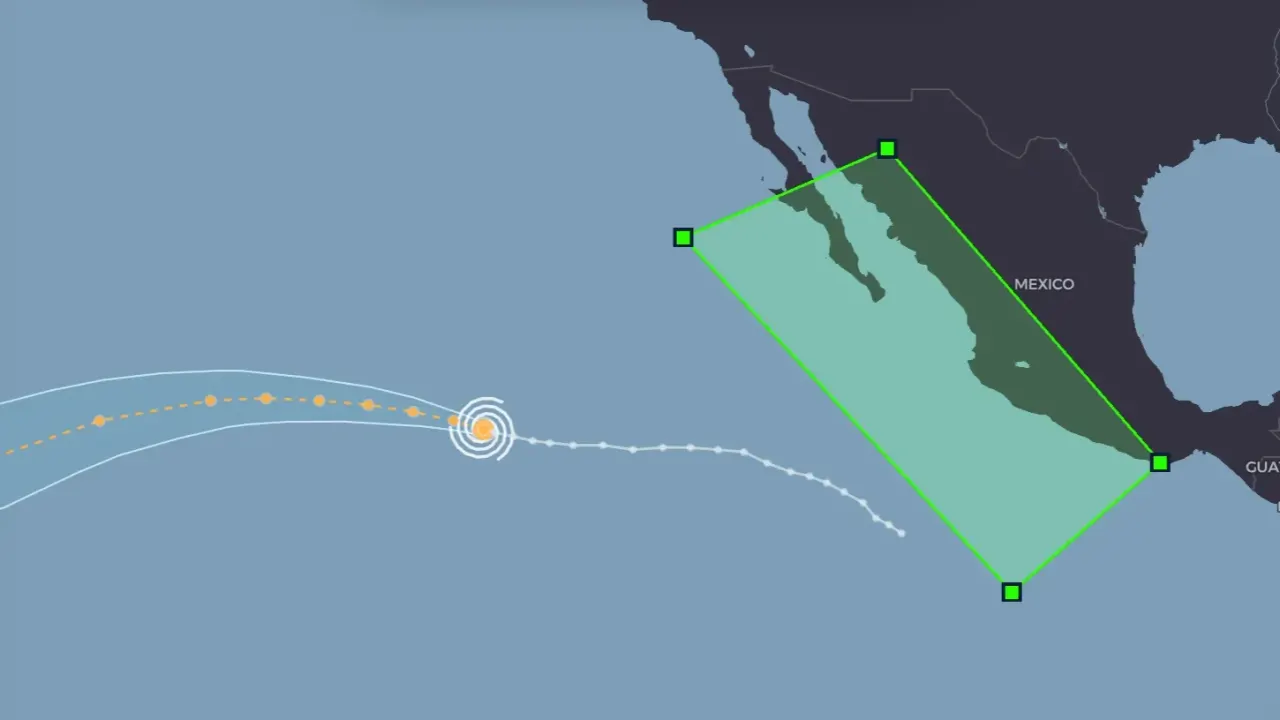
Using the tools, outline the geographical area on the map that you'd like to watch. Once finished, press the Enter key on your keyboard or press the on-screen Finish button to continue.
Step 3: Customize your Watch Zone
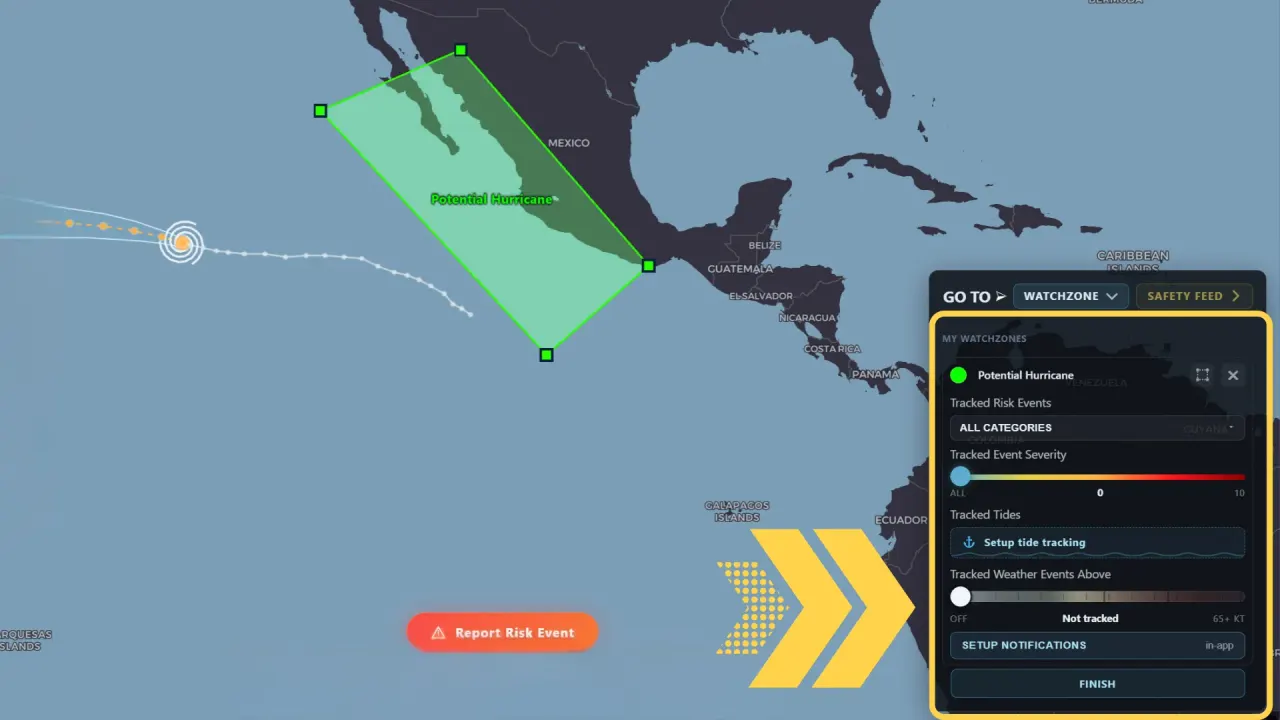
For each Watch Zone you have multiple customization options which can be accessed and modified any time.
- Change the Watch Zone color and name
- Hide it on the map
- Delete it
- Set the Tracked Event Severity
- Choose to setup Tracked Tides
- Select the wind speeds you'd like tracked
- Enable in-app notifications of updates to your phone
Once you have set the parameters you want, press Finish.
Step 4: Setup Notifications
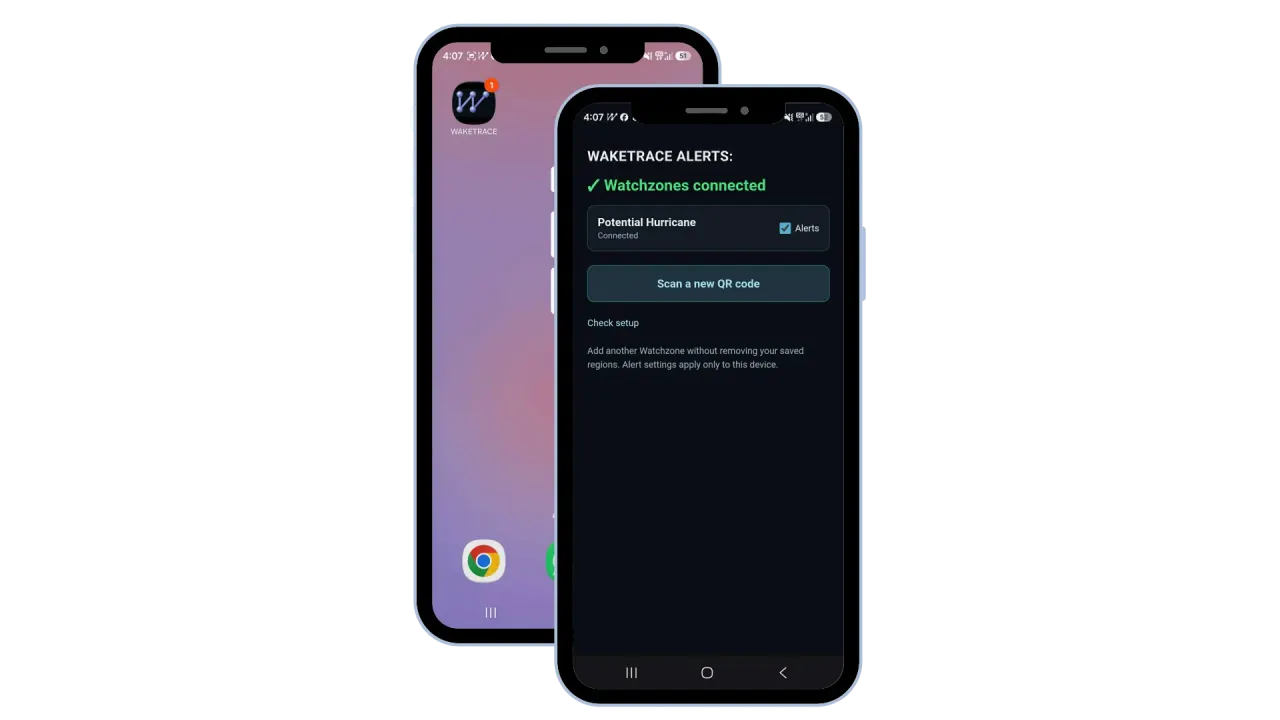
If you want, you can take the additional step of setting up push-notifications. To do this, press Setup Notifications then follow the prompts to complete the process. There are multiple notification options, including getting push notifications to your mobile device or browser.
Watch Zone FAQ
Can I update a Watch Zone?
Yes, you can update a Watch Zone by pressing the Edit button.
How do I delete a Watch Zone?
To delete a Watch Zone, press Edit then the X button to instantly delete it.
When I update a Watch Zone, do I need to update notifications?
No, once you have completed the setup process for the notifications it will automatically sync with your choices.